Setting the default sound device automatically - switchaudiosource
We’ve got Macs in lots of weird and wonderful places like recording studios and video editing suites. Our Macs are bound to Active Directory so any student can log in with their university ID and get to work. These specialist areas often use a third party sound card/audio interface, so the first thing students should do is set that as their default device in System Preferences, Sound. As well as having the usual stuff like web browsers and media players route audio through that lovely device, applications like GarageBand and Logic Pro will set their audio input/output to whatever you choose there too. Enter switchaudiosource.
Using switchaudiosource
Switchaudiosource is a command line utility you can use to programatically set the input, output or system audio device. It works with macOS 10.12 (and might work with 10.13 - I haven’t tested it yet - let me know if you have). Here’s its Github page with instructions for installing it with brew. I’ve packaged the binary here in case you don’t want do bother with brew. The shasum for my package is 46da82947bdf68423738b97d0a4cee06cd037598. My package installs switchaudiosource in /usr/local/bin.
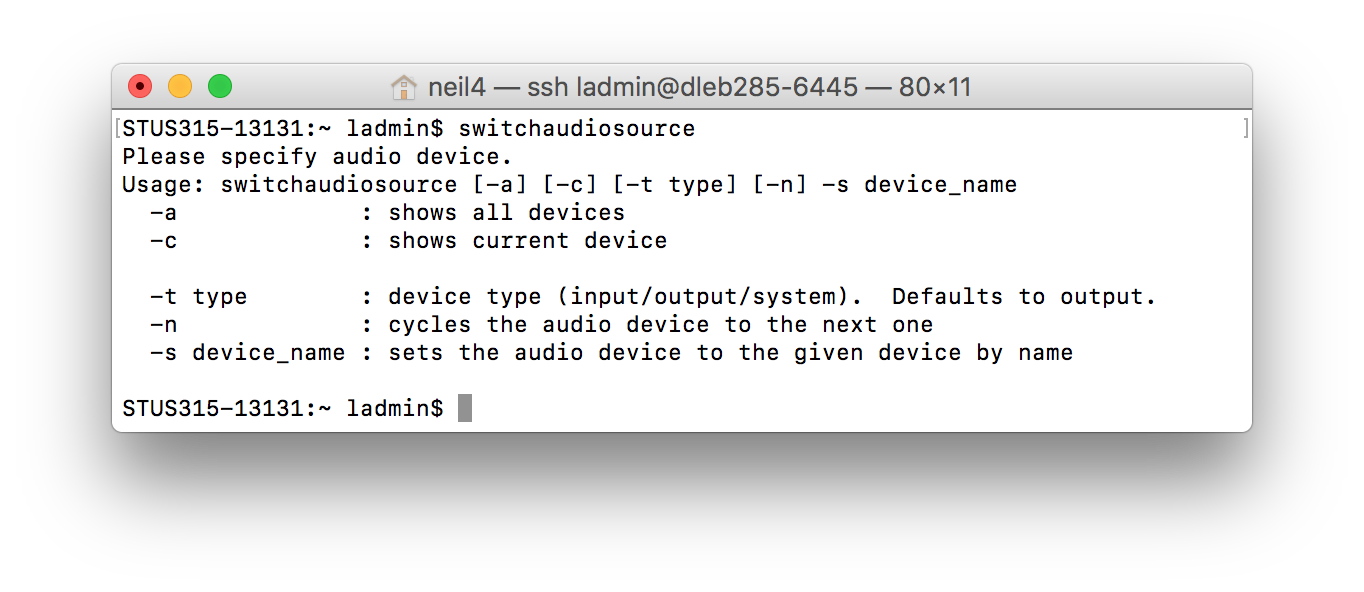
Using switchaudiosource is easy and it gives good feedback. Type the command by itself to get help:
switchaudiosource
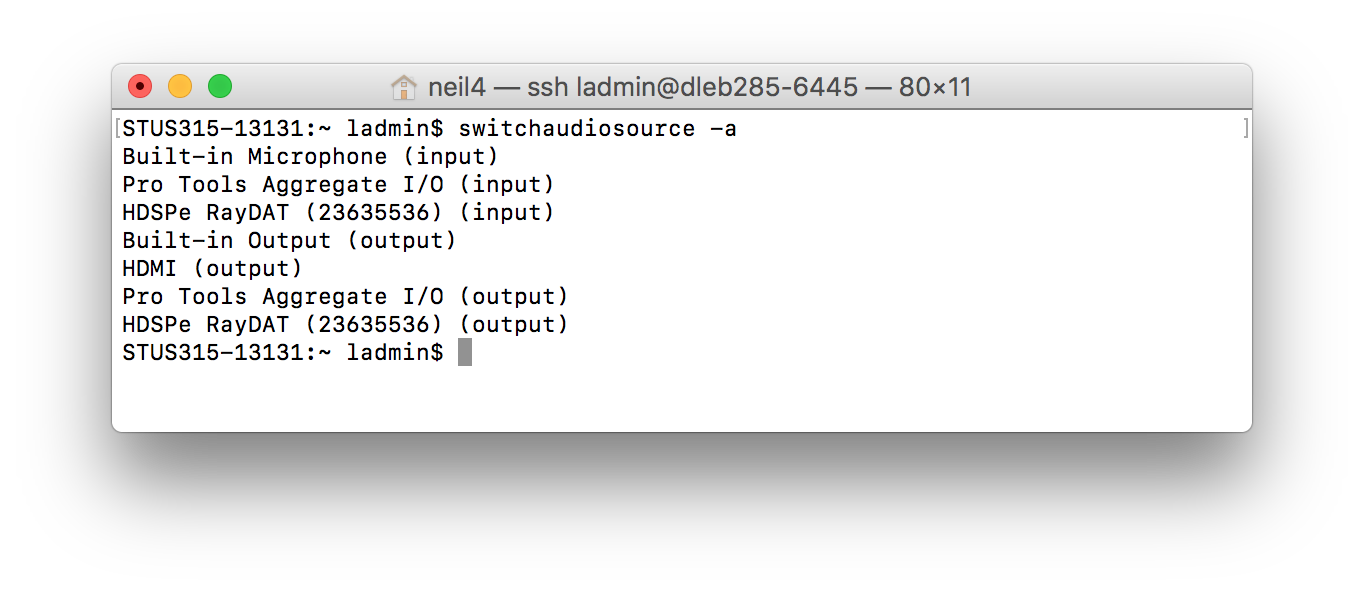
List all audio devices currently connected:
switchaudiosource -a
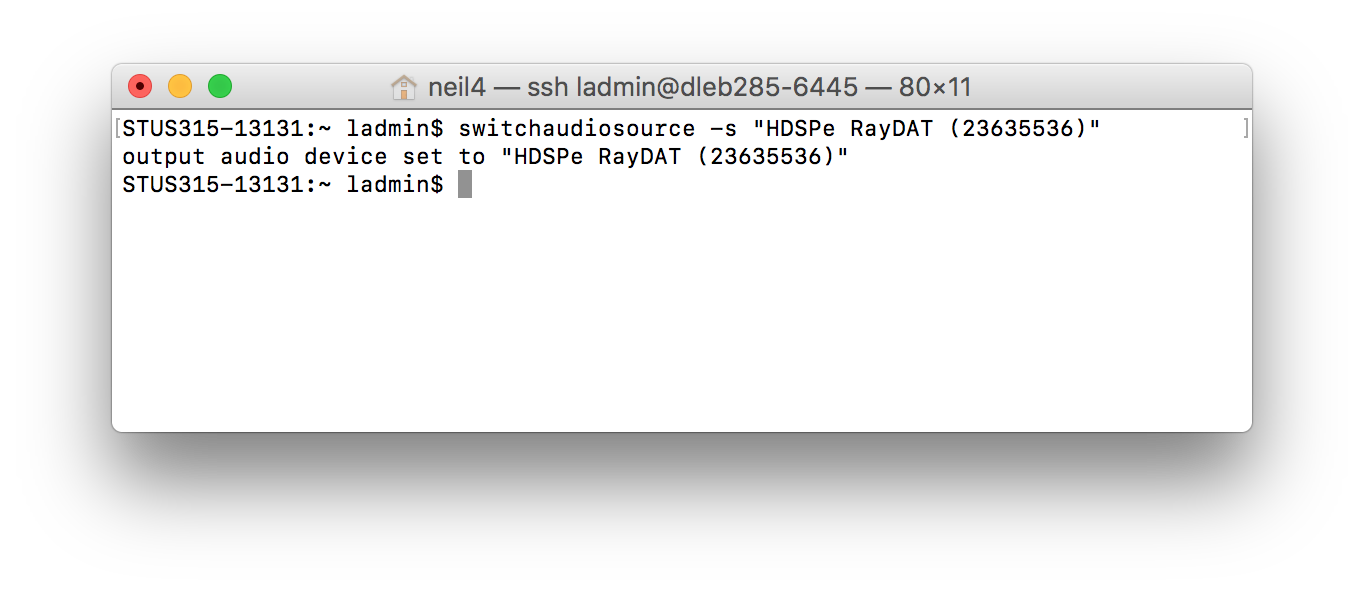
Set the output device to something specific, using a name from the list above (in this example, our RME RayDAT card - what an awesome bit of kit!):
switchaudiosource -s "HDSPe RayDAT (23635536)"
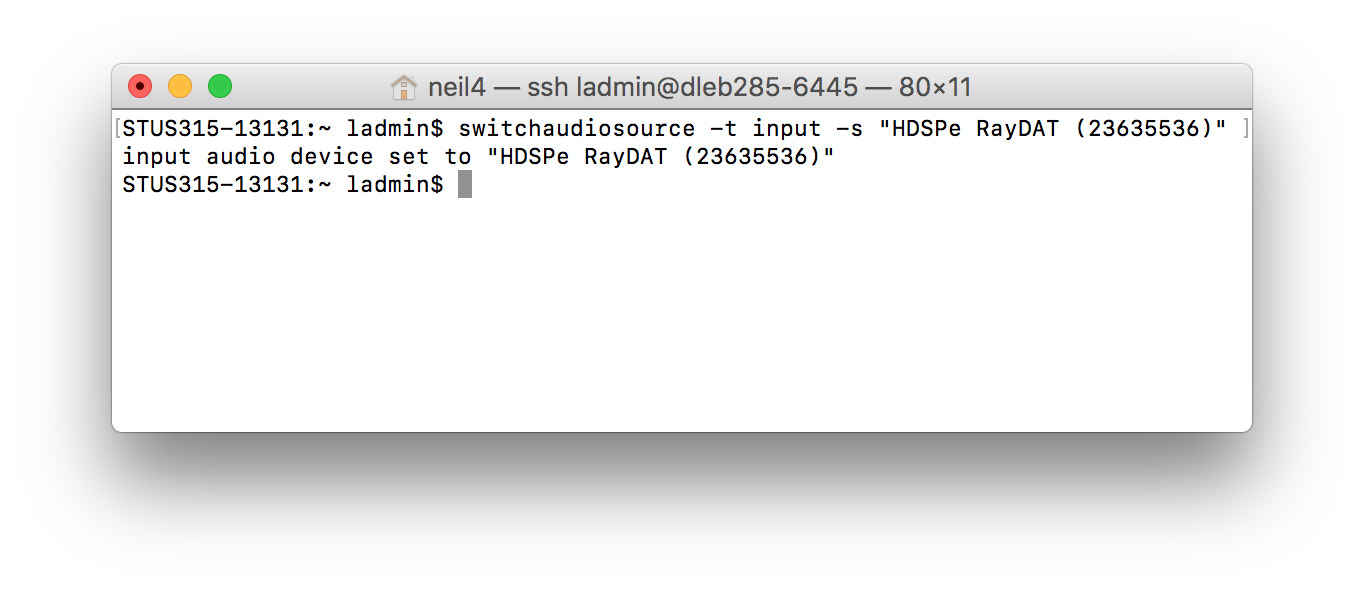
Set the input device to something specific:
switchaudiosource -t input -s "HDSPe RayDAT (23635536)"
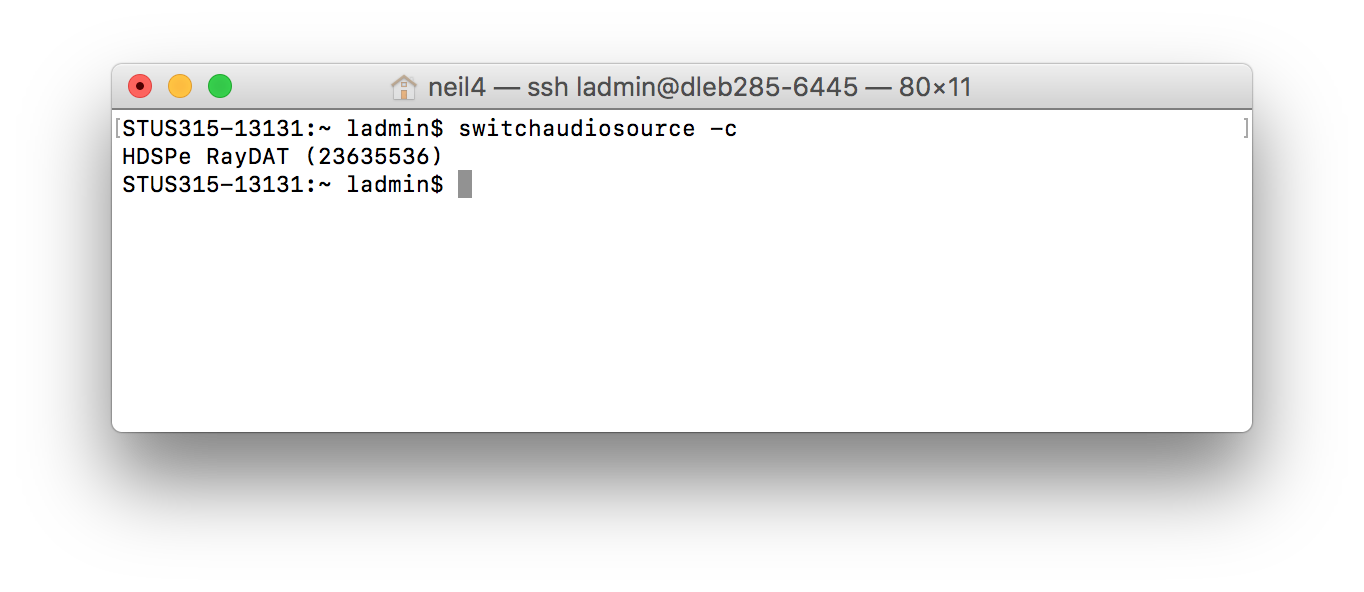
Tell us the current default device:
switchaudiosource -c
Scripting switchaudiosource
You could invoke switchaudiosource with a script and run it at user login. This would automatically set the default audio device silently, with the user blissfully unaware. I use a Jamf Pro login policy and make sure that switchaudiosource runs in the context of the current logged in user. You could also use Outset which gives you the ability to run the entire script as the current logged in user, so no need for sudo -u.
Here’s my Jamf Pro login policy example:
Because I use switchaudiosource in a few different spaces that use different audio devices, I make use of Jamf Pro’s parameters, with $4 being the output device and $5 being the input:
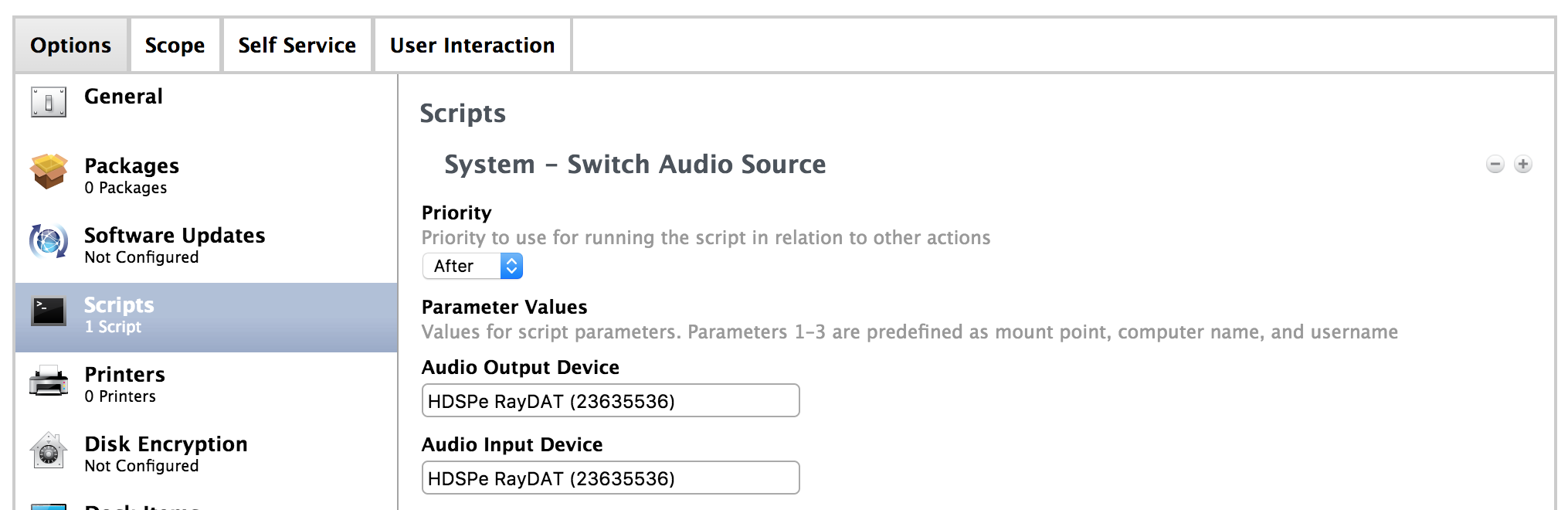
That way, I only need one script in my Jamf Pro Server.