Keynote - showing off your code in presentations with Magic Move
I’ve been working on a presentation, part of which will involve stepping through code. I wanted to share a technique I refined a little that was inspired by James Smith (@smithjw on the Slack) of CultureAmp during his JNUC 2017 talk. It’s perfect when you want to scroll through a long script and highlight certain parts of it.
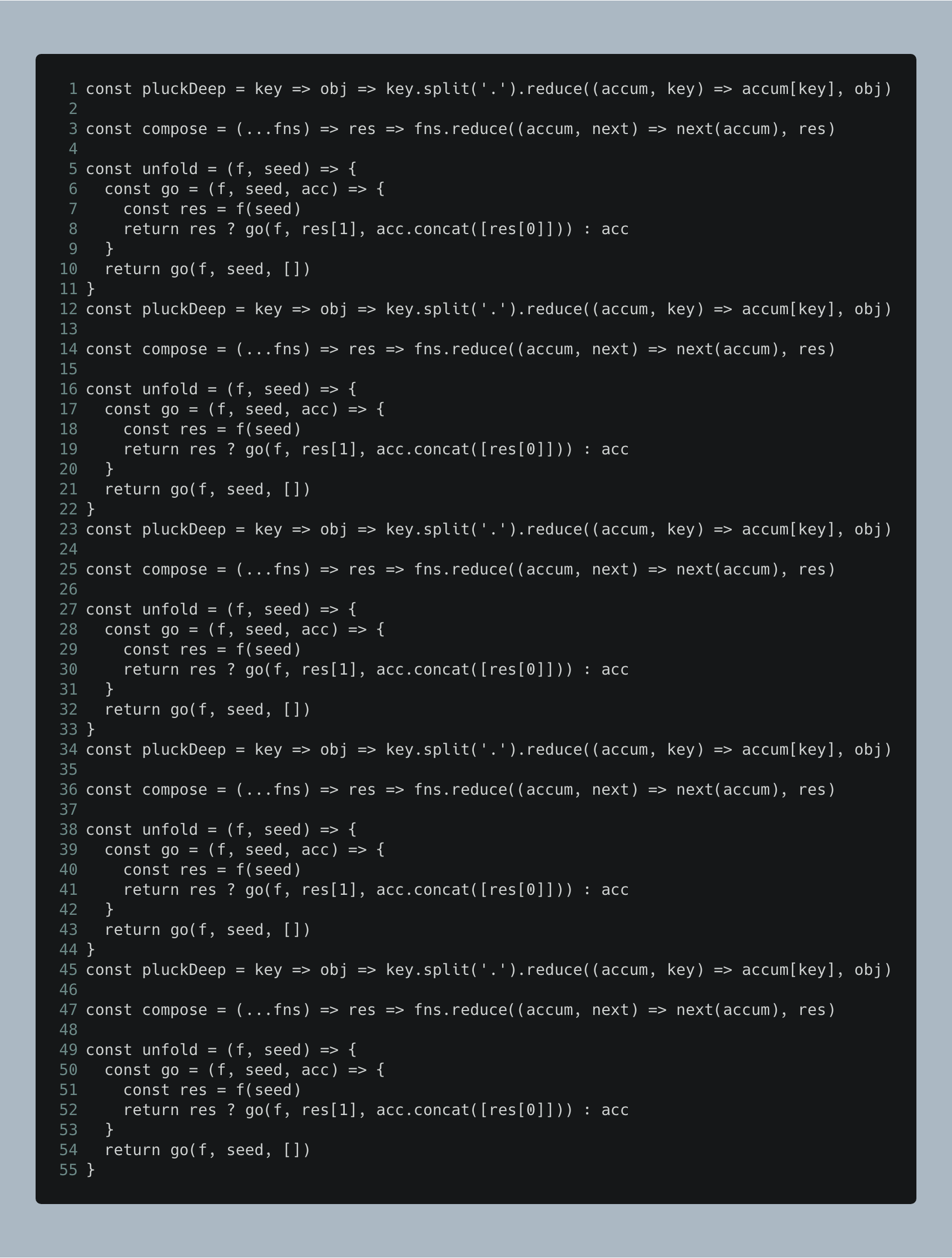
Head to https://carbon.now.sh/ (this is so awesome, thanks for pointing it out, Wes!). Paste your code there, tweak the options as you like then save an image of the result. In the example below I disabled window controls and turned on line numbers:
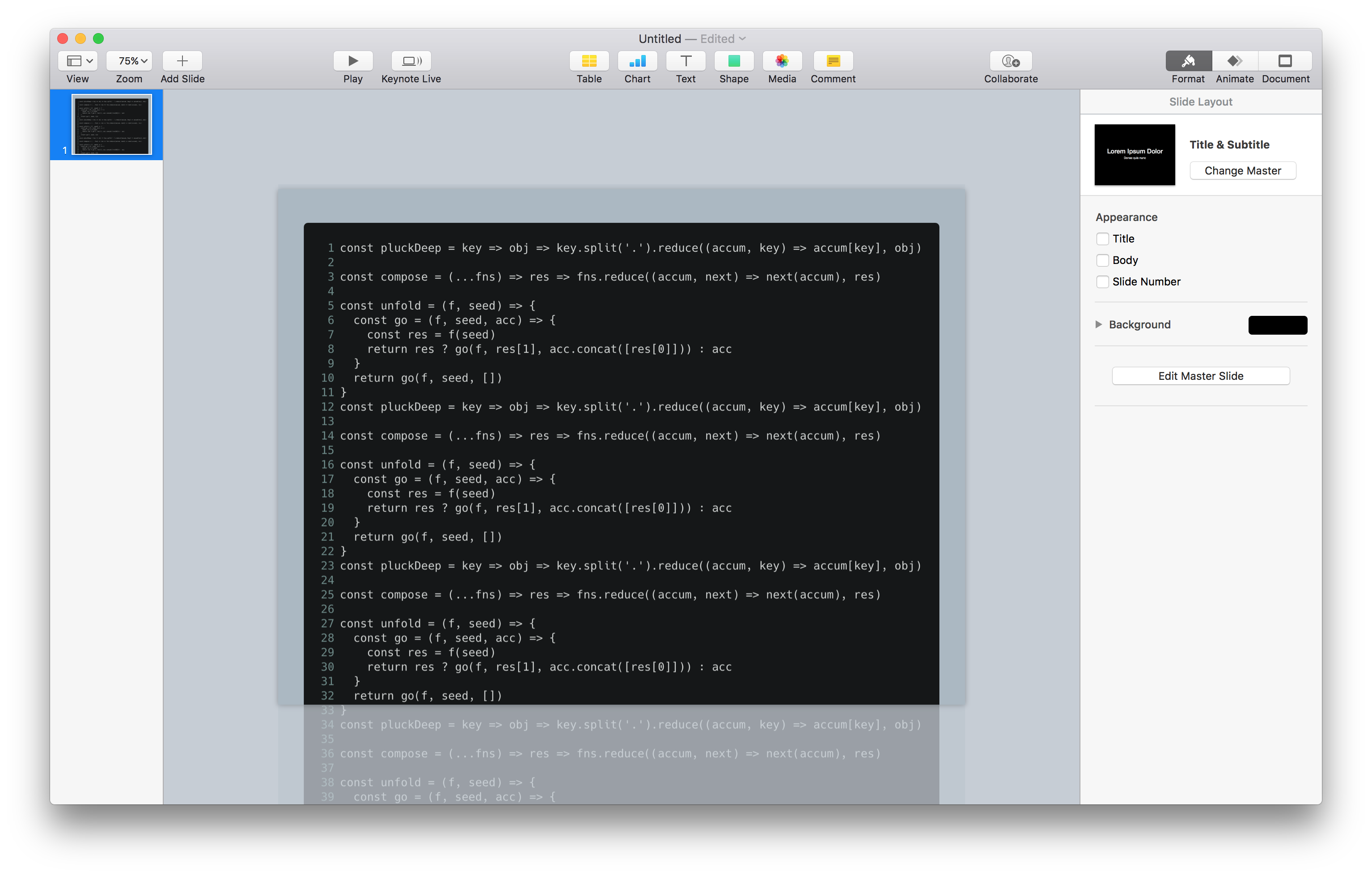
Stick it into a Keynote slide and resize it to fit the width (you may need to zoom out) - don’t worry about the lower part extending beyond the slide border, that’s fine:
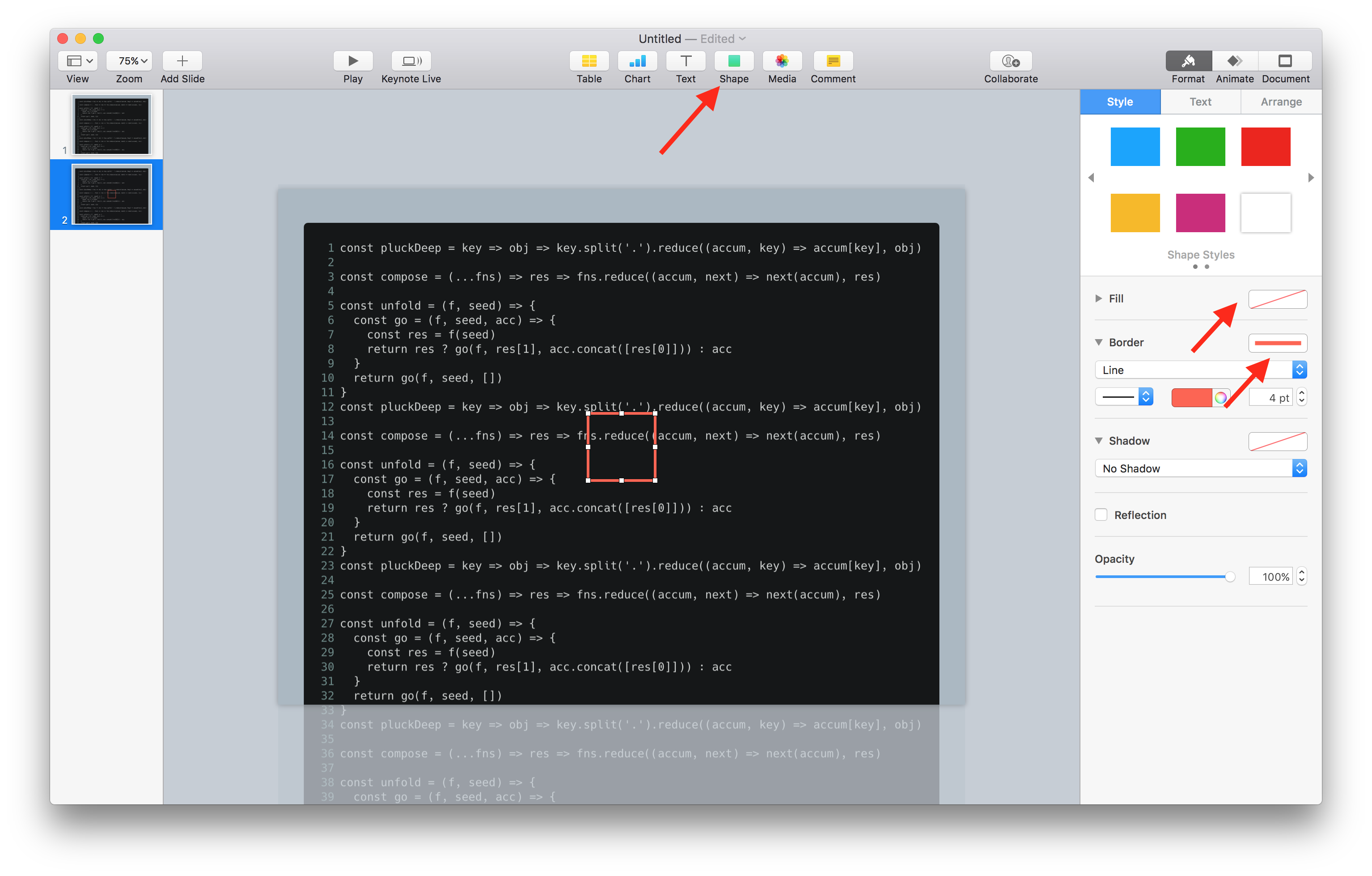
Duplicate the slide, then add a shape - a rounded rectangle or square works. Format the shape to remove the fill and add a border. Pick a colour you like for the border, red is nice:
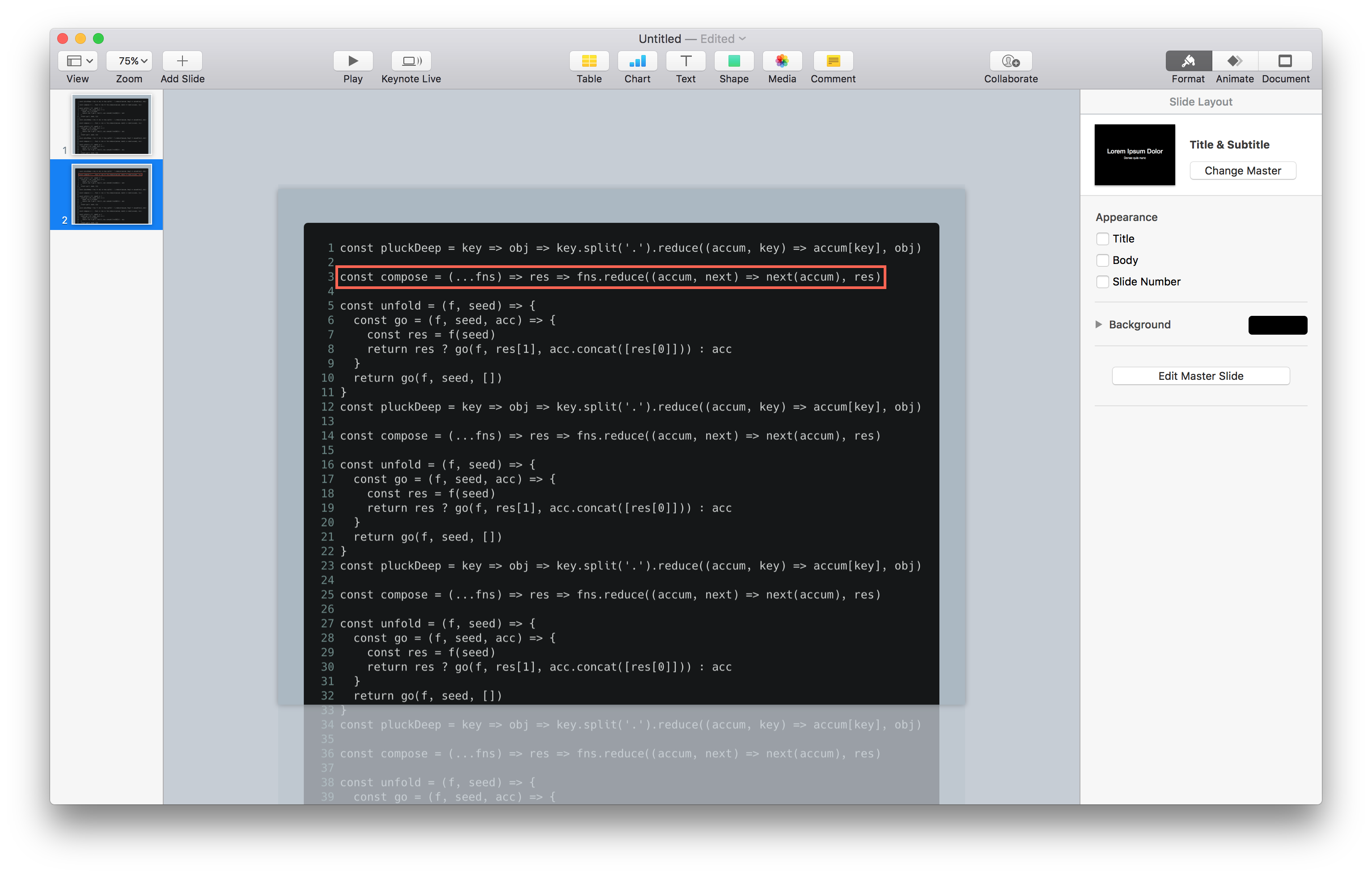
Resize the shape so it surrounds the first portion of code you want to highlight:
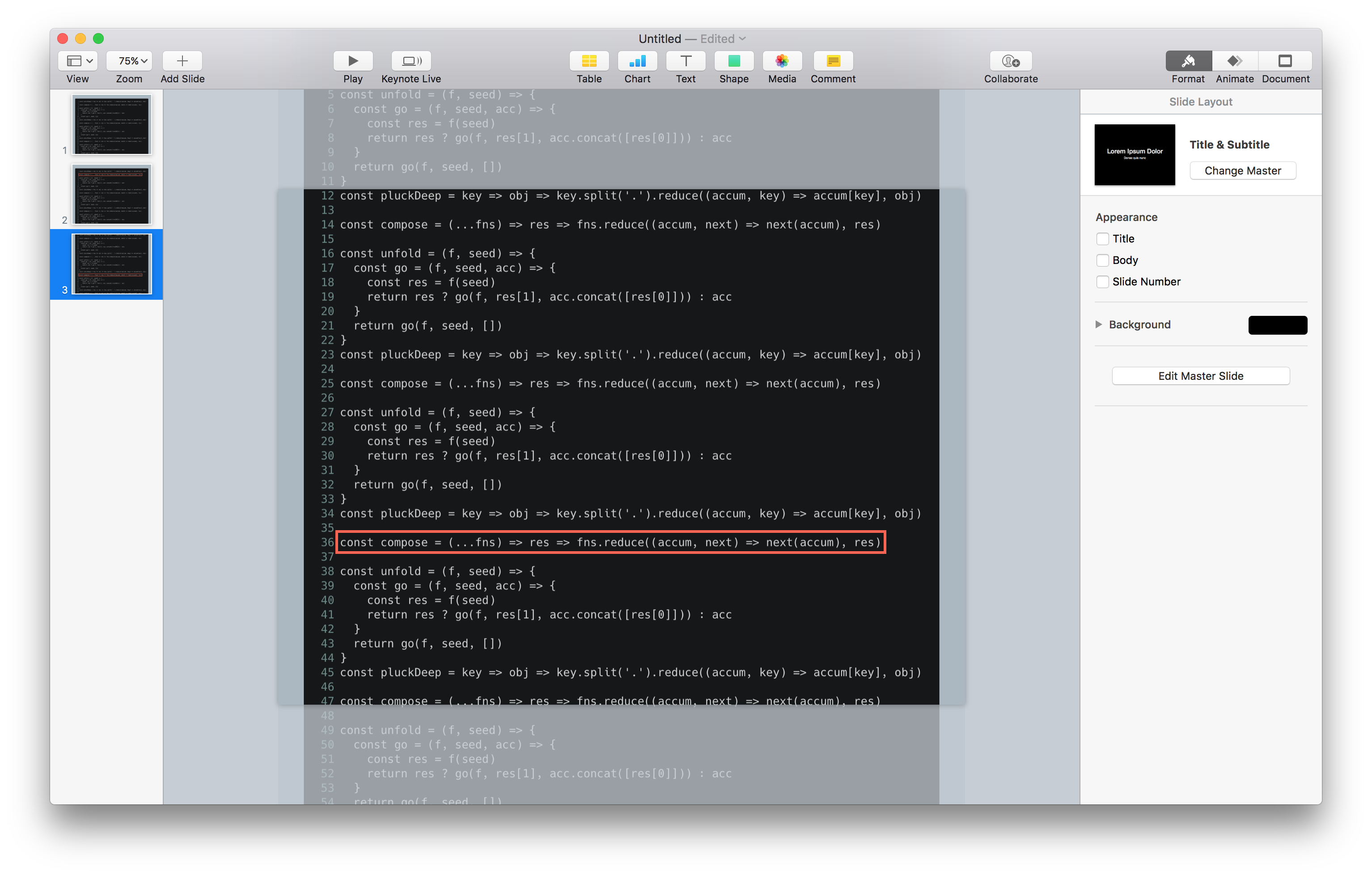
For the next slide, we want to highlight a section of code that isn’t shown (it’s in the bottom half of the image). Duplicate the slide, then on the new slide, move the image of your code up and move/resize the shape to highlight the part you need (tip: hold Shift as you move the image and shape to lock their horizontal positions - this will make for a nicer transition!):
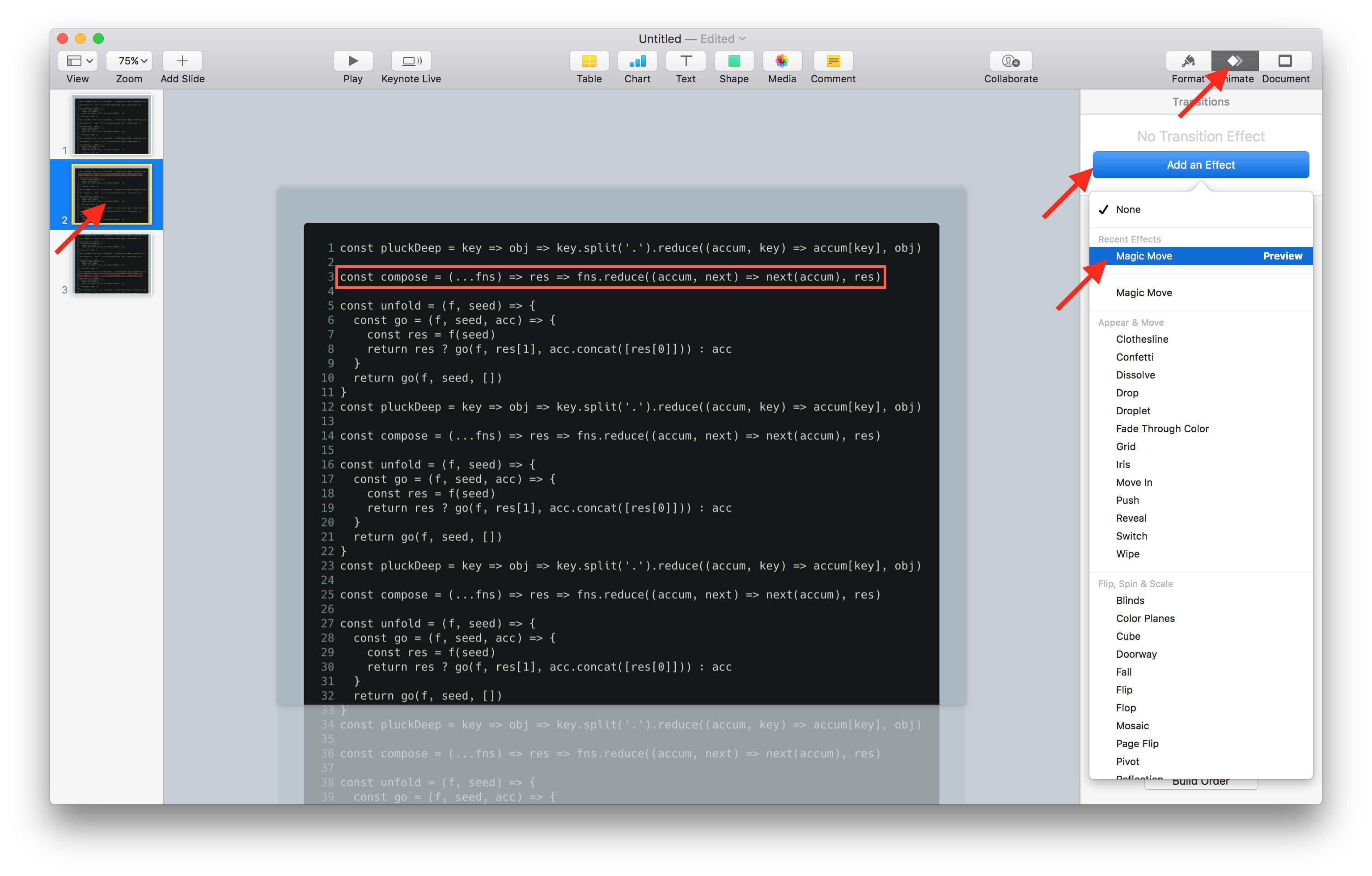
Next, select the previous slide, click the Animate button in the toolbar, choose Add an Effect, then Magic Move. You might see a dialog telling you about duplicate items/slides - just click OK if it pops up:
Rinse and repeat the above steps for every part you want to highlight. The result is pretty cool!
Thanks again to James for Magic Move hint!