(Really) Disabling Time Machine - a Multi-pronged Approach
Great Scott! Time Machine is a fantastic backup solution for people using Macs in a home environment but it can cause issues in enterprise settings. For example, around data loss prevention (DLP), as users can have local data on their Macs end up on a backup destination you don’t manage or control. With this in mind, lots of organisations prefer to use enterprise-grade backup solutions such as Code42, Backblaze or Druva etc.
If you have something like this in place, or your users use a cloud service like Google Drive or OneDrive, you might want to make sure Time Machine doesn’t rear its head again. Thankfully, we have some ways to keep it at bay. Thanks to Mike Dowler for a few extra pointers as I was discussing this with him in #london on the MacAdmins Slack!
Prong 1 - Don’t tell users to back up external drives
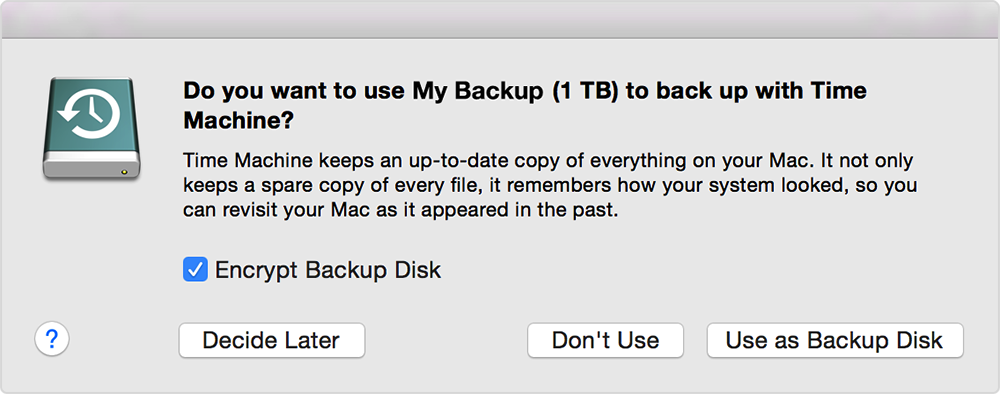
Ignorance is bliss - if you don’t know Time Machine is a thing, then you’ll likely never use it.
Setting the following preference via the command line will stop this behaviour:
% sudo defaults write /Library/Preferences/com.apple.TimeMachine DoNotOfferNewDisksForBackup -bool TRUE
The following MDM Configuration Profile can (and should) be used to enforce this:
Prong 2 - Stop Time Machine’s automatic backups being enabled
Even if you suppress the prompts for backing up when new drives are connected, it’s still possible to enable Time Machine through System Preferences or by running tmutil enable in the Terminal. Let’s set another preference to stop that:
% sudo defaults write /Library/Preferences/com.apple.TimeMachine AutoBackup -bool FALSE
The following MDM configuration Profile can (and should) be used to enforce this (it will “grey-out” the Back Up Automatically tick-box in System Preferences). Thanks to Mike Dowler for pointing out this one!
Prong 3 - Hide the menu bar item
Users can initiate backups using the menu bar icon for Time Machine, if they’ve configured backup destinations in the past. This MDM Configuration Profile will hide it:
Prong 4 - Remove existing backup destinations
Folks may have set up Time Machine before you managed to block it, so they’ll have backup destinations configured for it. We really should remove those. Luckily, the tmutil command has got your back and here’s a script that will remove any and all backup destinations a user might have set.
You can run this with a Jamf policy, Launch Daemon or with a tool like Outset. Thanks to Mike Dowler for the tip on stopping a backup if it’s running when you execute the script.
Prong 5 - Disable the Time Machine System Preferences pane
This is the final nail in the coffin, to stop users adding a new backup destination and running an ad-hoc backup via System Preferences. Most MDM platforms allow you to block specific System Preference panes in the Restrictions payload, including Time Machine.
The following profile will block just the Time Machine System Preferences Pane:
If you’ve got any more tips on taming Time Machine, please let me know in the comments.